---
title: AI Voice Agent Integration
description: Learn how to connect Convirza Voice Agents to your PMS or EHR to enable real-time patient lookup, appointment scheduling, and call outcome write-back. This guide covers supported systems, prerequisites, step-by-step setup for server-based and cloud platforms, configuration, testing, troubleshooting, and best practices for IT and practice staff.
---
[Skip to content](https://kb.convirza.com/ai-voice-agent-integration#main-content)
English
Show submenu for translations
[More support](https://kb.convirza.com/kb-tickets/new?hsLang=en)

Open main navigation
Close main navigation
- English
Show submenu for translations
- [More support](https://kb.convirza.com/kb-tickets/new)
- Contact us
Contact us
How can we help you?
- There are no suggestions because the search field is empty.
1. [Knowledge Base](https://kb.convirza.com/?hsLang=en)
2. [Integrations](https://kb.convirza.com/integrations?hsLang=en)
# AI Voice Agent Integration
## Summary: This article explains how to connect Convirza Voice Agent to your practice management system (PMS/EHR) using the new secure connector flow. It is designed for practice managers, front-office staff, and clinic administrators who will walk through the setup, with additional details for IT administrators who manage security, servers, and credentials. By the end, you will have your PMS connected, locations imported, Voice Agents configured, and access to analytics and reports.
#### **What this integration does:**
Convirza Voice Agent uses AI to handle patient calls, schedule appointments, and record outcomes. When you connect it to your practice management system (PMS/EHR), the agent can work directly with real patients and schedule data during live calls. A PMS or EHR is the system where you manage patients, schedules, and treatment plans (for example, Dentrix, Open Dental, Athena, or Curve Hero).
**Once connected, the integration can:**
- Look up and verify patients in real time during calls.
- Read appointment schedules by provider and location.
- Create, reschedule, and cancel appointments where allowed by your PMS.
- View balances and treatment plans while on the call (for supported systems).
- Write call notes and outcomes back to the patient chart when configured.
- Use provider and location schedules to route callers to the right place.
**Supported on‑premise or server-based systems include:**
- Dentrix (G6.2+ and Dentrix Enterprise).
- Open Dental (V17+, including multi-clinic).
- Eaglesoft (18+, including n‑site).
- Dolphin Imaging & Management.
- OrthoTrac.
- PracticeWorks.
**Supported cloud‑based systems include:**
- Athena.
- Cloud9.
- Curve Hero.
- Denticon.
- Dentrix Ascend.
- eClinicalWorks (v11.53+, cloud only).
- Modernising Medicine (ModMed).
- NextGen Healthcare.
#### **Before you start**Ensure you have the following in place before initiating the connection flow.
#### **Practice access and permissions:**
- #### A Convirza account with access to **Voice Agents and Integrations**.
- #### Someone authorized to connect external applications to your **PMS/EHR**.
- #### For on‑premise systems: **access** (local or remote) to the Windows server where the PMS database lives.
- #### For cloud systems: the ability to create a dedicated integration user in your PMS/EHR.
#### **Practice information you will be asked to enter:**
- #### Practice or organization name.
- #### Primary contact email (ideally someone with access to the server machine).
- #### A practice phone number.
- #### Practice address.
- #### Time zone (if requested).
#### **Technical requirements:**
- #### A desktop or laptop with a modern browser, with Google Chrome recommended.
- #### For on‑premise installs: a Windows server or workstation with admin rights to run the connector installer.
- #### For cloud systems that use browser extensions: Google Chrome is installed on all workstations that use the PMS/EHR.
- #### For IT admins: Your network must allow outbound connections to the connector service over standard HTTPS ports so the secure connector can sync data.
#### **Additional requirements for server‑based Dentrix practices (example from the Dentrix integration page):**
- #### Dentrix Ascend or Dentrix G7 or higher.
- #### Enrollment in the Dentrix Developer Program.
- #### API access credentials from Henry Schein.
- #### Access to Patient, Appointment, Treatment Plan, and Provider data.
- #### An active Dentrix subscription with an API‑enabled license.
#### If you do not see the Integrations option or your PMS in the list, contact Convirza Support or your IT administrator.
#### **Step 1: Open the Convirza Voice Agent integration settings**
1. Log in to your Convirza account.
2. From the main navigation, open **Settings**.
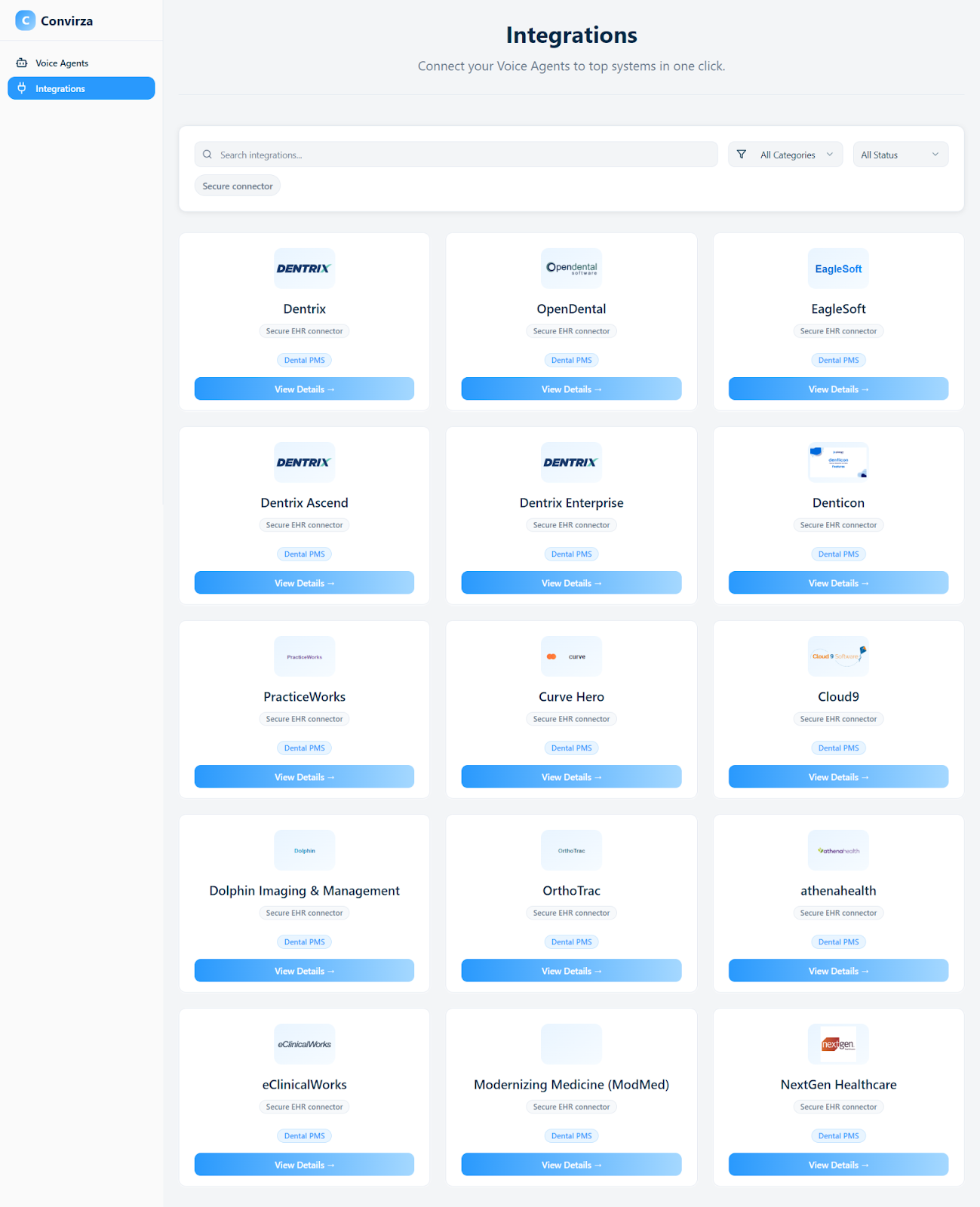
3. Click **Integrations**. On this page (shown in your Integrations screenshot), you will see tiles for supported systems such as **Dentrix**, **OpenDental**, **EagleSoft**, **Dentrix Ascend**, **Dentrix Enterprise**, **Curve Hero**, **Cloud9**, and others. Each tile includes a **View Details** button.
4. Use the search bar if needed to find your PMS/EHR by name.
5. Click **View Details →** on the tile for your PMS.
6. On the integration detail page (for example, the **Dentrix** page), review the **What you can do** and **Requirements & Compatibility** sections so you understand what the connection will enable and what is required.
7. Click **Connect practice data →** or **Connect** to start the connection flow.
If your Convirza account supports multiple practices or brands, you may be prompted to select which practice you are connecting.
---
#### **Step 2: Connect your practice management system (PMS)**
This step has two parts: entering practice details and completing setup on the external connector page.
### **1. Enter practice details in Convirza**
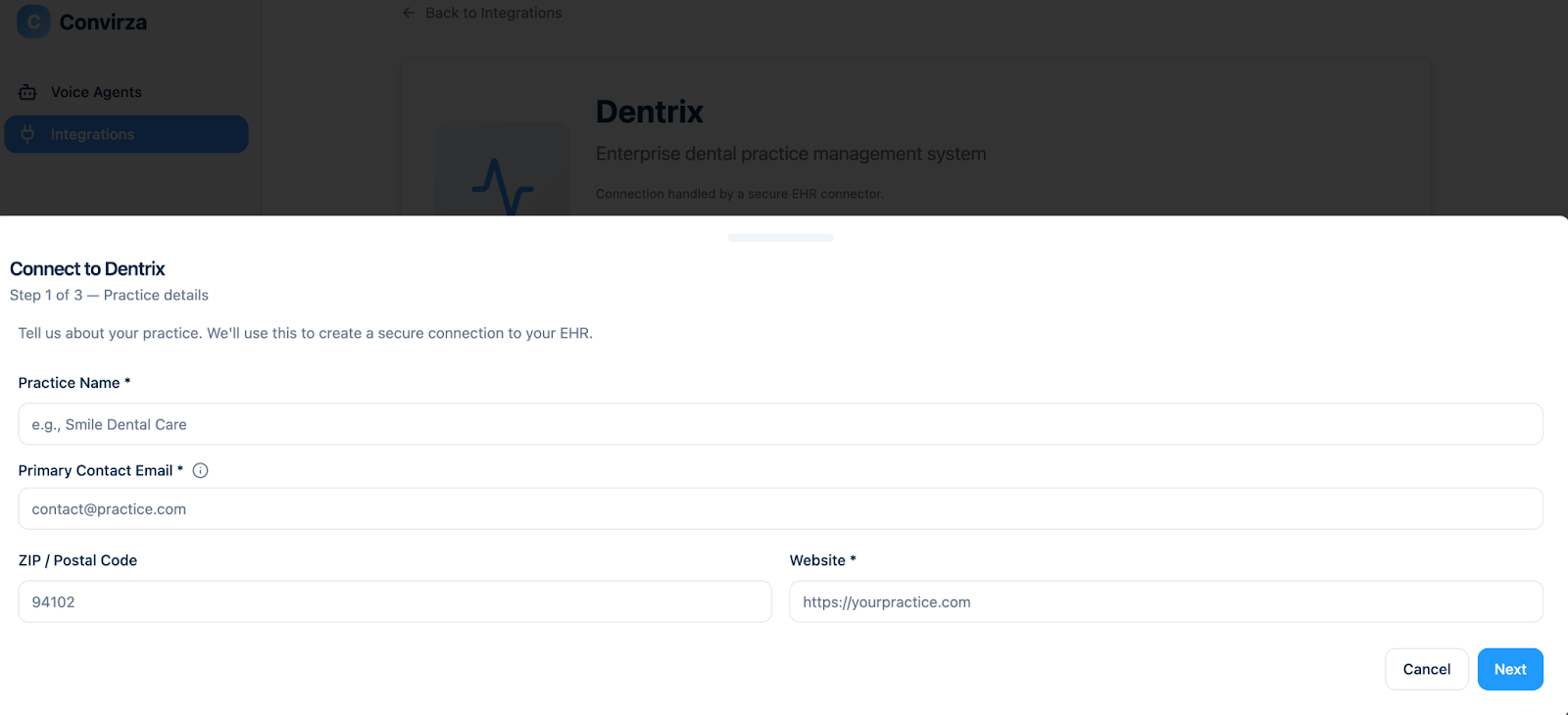
1. After you click **Connect**, a short form opens in the Convirza app.
2. Fill in the requested fields, which typically include:
- **Practice/Organization name**
- **Primary contact email**
- **Phone number**
- **Practice address**
- **Time zone** (if shown)
3. Verify that all details are correct, then click **Continue**.
4. Convirza securely sends this information to the connector platform via API and creates a connection profile for your practice.
5. You will see a confirmation message and a button such as **Open setup page** to continue.
****
**For IT admins:** The practice details are used to create an onboarding record in the connector platform (for example, via the /onboardings API), which determines which EHR type and locations are associated with this connection.
### **2. Complete setup on the external connector page**
When you click the Open **setup page**, a new browser tab opens with a secure setup page hosted by the connector partner.
On this page, you will typically see:
- A welcome message showing your practice name.
- A prompt to confirm or select your PMS/EHR.
- A setup flow tailored to your EHR type (server‑based, cloud‑based, scheduled installation, or existing connector).
Follow the option below that matches your environment.
### **Option A: Server‑based (on‑premise) PMS**
Use this option for on‑premise systems such as Dentrix, Open Dental (server), Eaglesoft, Dentrix Enterprise, Dolphin, OrthoTrac, and PracticeWorks.
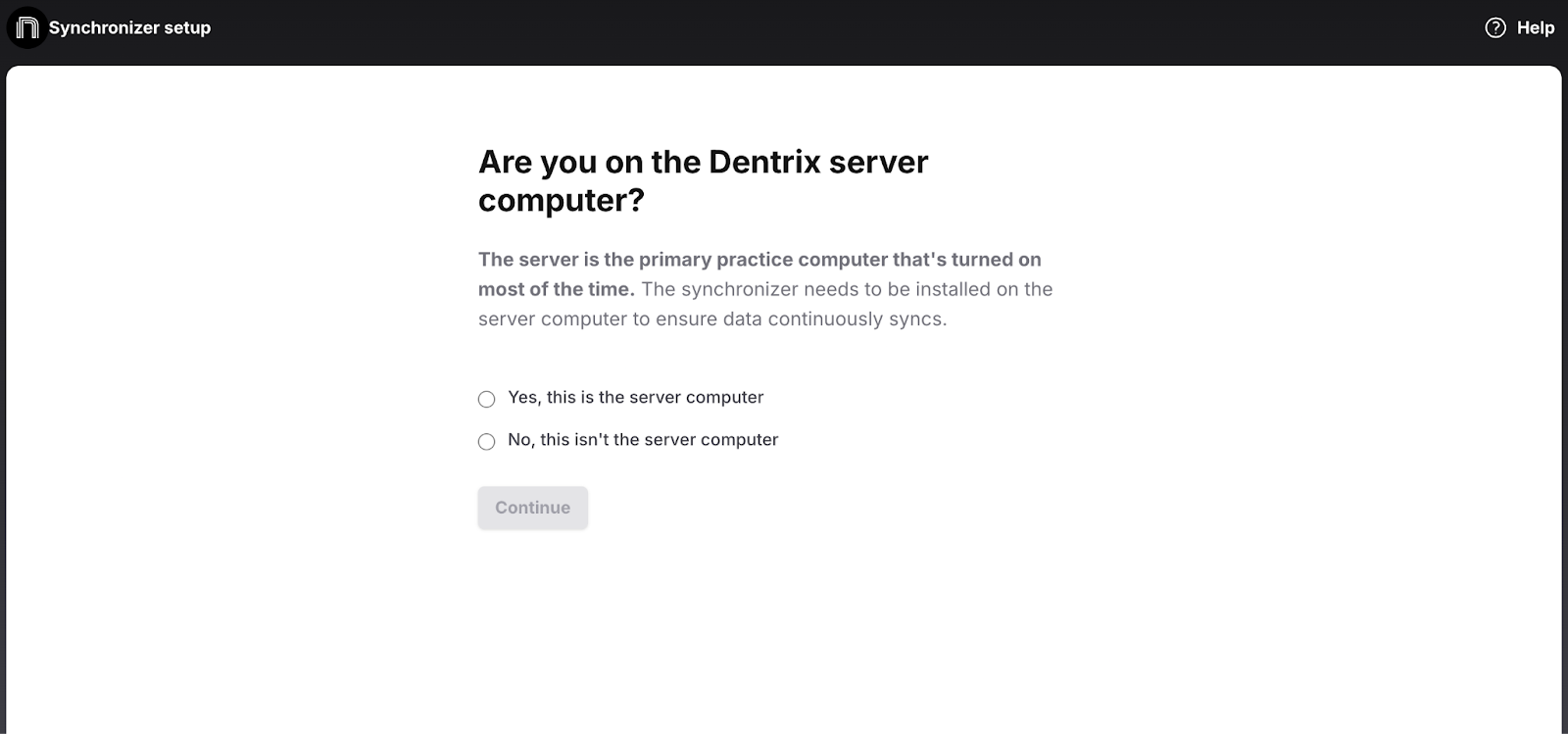
1. Make sure you are on the primary server or the machine that can access the PMS database.
2. On the setup page, confirm that you are on the server. If you are not, copy the setup link or email it to your IT administrator and open it on the server.
****
3. Click **Download** to download the connector installer (Windows .exe file).
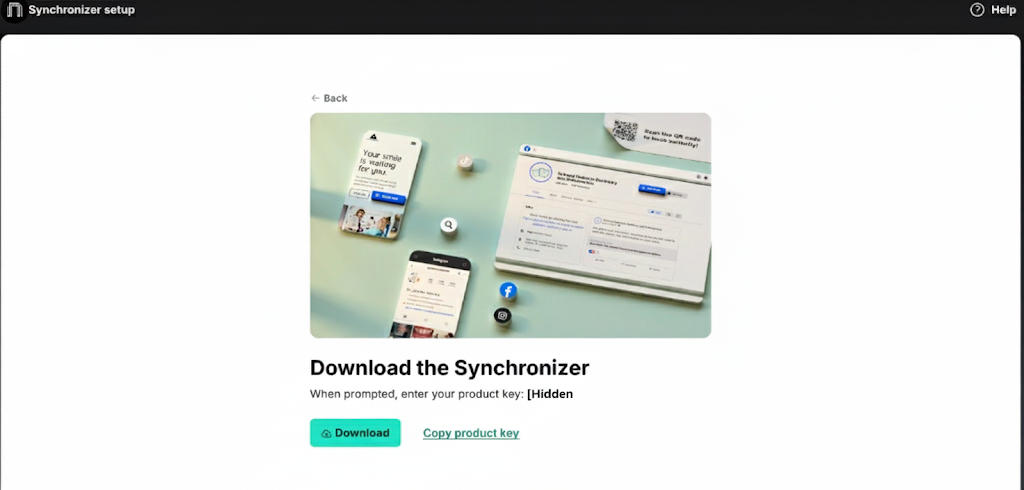
4. On the server, run the installer with admin rights. The installer may show a product key that is either pre‑filled or displayed for you to copy and paste.
5. Allow the installation to complete. This may take 10–30 minutes, depending on the system.
6. When prompted by the setup UI, select which locations from your PMS database you want to share with connected apps. Select the practice locations that should be available to Convirza, then click **Continue** or **Finish**.

7. When the installer and location selection are complete, you will see a success message and receive a confirmation email from the connector platform.
**For IT admins:** For server‑based setups, confirm that the PMS database is on a Windows server where Windows services or background applications can be installed, and that the server stays powered on and connected to the internet during business hours so data can stay in sync.
### **Option B: Cloud‑based PMS**
Use this option for systems such as Athena, Cloud9, Curve Hero, Denticon, Dentrix Ascend, eClinicalWorks (cloud), ModMed, and NextGen.
1. In your PMS/EHR, create a dedicated integration user account instead of using a personal login.
2. Assign the recommended roles or permissions for that system (see the **Technical details for IT admins** section below for system‑specific notes).
3. Return to the external setup page.
4. Enter the **EHR login URL** if requested (for example, a practice‑specific URL or login page).
5. Enter the **username** and **password** for the dedicated integration user.
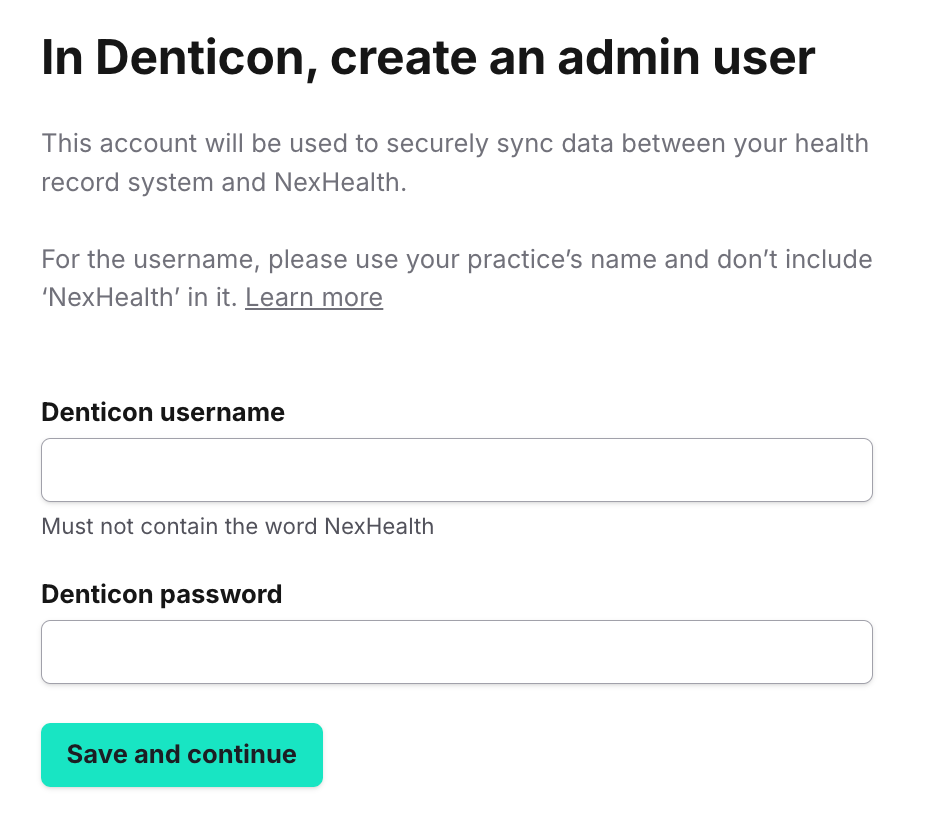
6. If the setup page indicates that a Chrome extension is required, click the link to the Chrome Web Store and install the extension.
7. When prompted, paste the token provided on the setup page so the extension is linked to your practice. Install and authenticate the extension on each workstation that uses the PMS/EHR.
8. When you finish the steps, the setup page shows a completion message, and you receive a confirmation email.
### **Option C: EHRs that require a scheduled installation**
Some systems do not support a full self‑serve setup. For these:
1. On the external setup page, specify how many locations need to be configured.
2. Use the scheduling options on the page to book a time with the connector engineering team.
3. Check your email for a confirmation with meeting details.
4. During the scheduled session, the engineering team completes the connector installation for you.
### **Option D: Practices already using the connector**
If your practice already uses the same connector service for another vendor, the setup is shortened.
1. You receive an email asking you to grant access to the new Convirza Voice Agent app.
2. Click the **Grant access** link in the email.
3. If your account has only one location, access is granted automatically.
4. If you have multiple locations, select which locations Convirza Voice Agent should access, then click **Grant access**.
No additional installer or credentials are needed in this existing‑user scenario.
If you do not see the expected setup flow for your PMS type, contact Convirza Support or your IT administrator.
---
#### **Step 3: Configure integration settings**
After the external setup is complete and the connector is online, return to the Convirza Voice Agent integration page to configure how the PMS data is used.
1. Open **Settings \> Integrations**, find your PMS, and open its **View Details** page again.
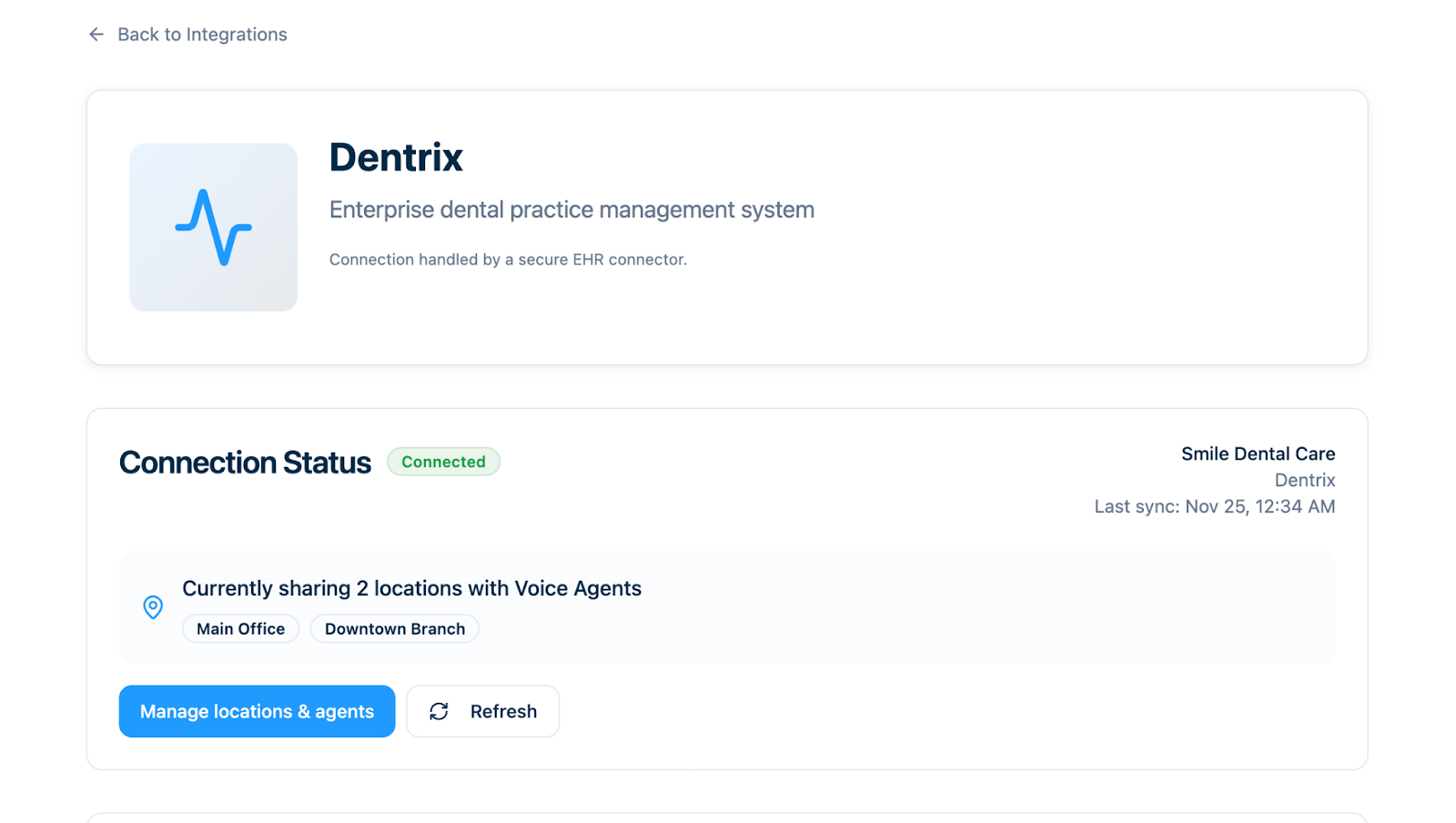
2. Review the connection status indicator. You should see a status such as **Connected**, **Pending**, or **Error** based on information returned from the connector API.
Voice AI New Integration flow (…
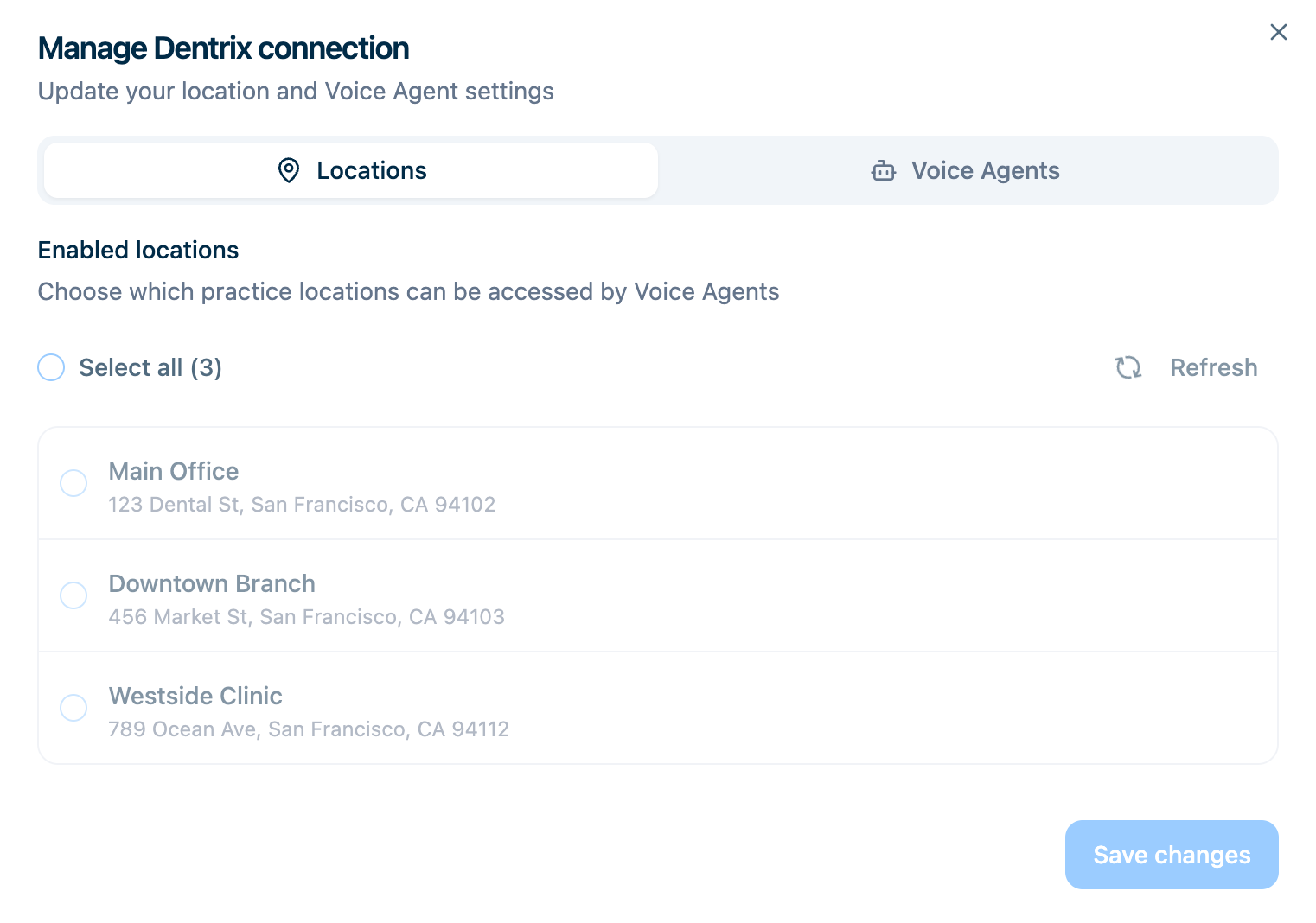
3. Once the connection is established, Convirza automatically imports locations (offices or clinics) from your PMS/EHR. A **Locations** section lists all available locations.
4. Select the locations you want Voice Agents to use by checking or enabling them in this section. You can enable or disable locations at any time; this only affects Voice Agents, not your underlying PMS.
5. For each Voice Agent in your account, ensure that the PMS integration is assigned to that agent. On the **Voice Agents** page, you can see how many integrations are connected in the **Integrations** column for each agent.
6. If available in your product, configure data flows and permissions such as:
- Patient lookup and validation.
- New appointment creation.
- Appointment rescheduling and cancellation.
- Writing call notes or outcomes back to the PMS/EHR.
- Mapping appointment types, providers, or visit reasons.
1. Save your changes. Your Voice Agents will now start using real PMS/EHR data on live calls.
**For IT admins:** These settings control which PMS resources the connector exposes to each Voice Agent and what write‑back operations (such as appointment creation or note logging) are allowed.
If you do not see locations, agent assignment, or data‑flow options after a successful connection, contact Convirza Support or your IT administrator.
---
#### **Step 4: Test and confirm the connection**
After configuration, you should verify both the connector and the Voice Agent behavior.
1. On the integration detail page, confirm that the connection status is **Connected** and that any **Last sync** indicators show a recent time.
2. Confirm that all expected locations and providers now appear in Convirza as options in your integration or Voice Agent configuration.
3. If you are creating or updating an agent, go through the **Create Agent** wizard:
- On **Agent Personalization** (Step 1), set **Agent Name**, **Industry** (for example, Healthcare), choose a **Voice Selection**, add a **Greeting Message**, and optionally add **Website URLs**, **Upload Documents**, and **Discussion Topics**.
- On **Agent Configuration** (Step 2), confirm **Call Direction** (currently **Inbound – Customers call your agent**), optionally attach tracking numbers, and adjust **Background Noise Simulation** and **Call Duration Controls** if needed.
- On **Test Your Agent** (Step 3), review the **Agent Summary** and click **Start Test Call & Create Agent** to place a test call.
4. During the test call, attempt to:
- Look up a patient.
- Check or book an appointment.
- Confirm that the Voice Agent can see schedules for the correct location and provider.
Voice AI New Integration flow (…
5. In your PMS/EHR, verify that any test appointment or note created by the Voice Agent appears correctly, with the right location, provider, and appointment type.
6. If you created a test patient or appointment, you can delete or mark it as a test in your PMS once you confirm functionality.
**For IT admins:** This is a good time to confirm that any required Chrome extension is installed and authenticated on workstations, and that the integration user account in the PMS/EHR remains active and has the expected permissions.
---
#### **Manage Voice Agents and create a new agent.**
Use the **Voice Agents** area to see all of your agents, review high‑level activity, and create new agents that use your PMS integration.
### **View the Voice Agents dashboard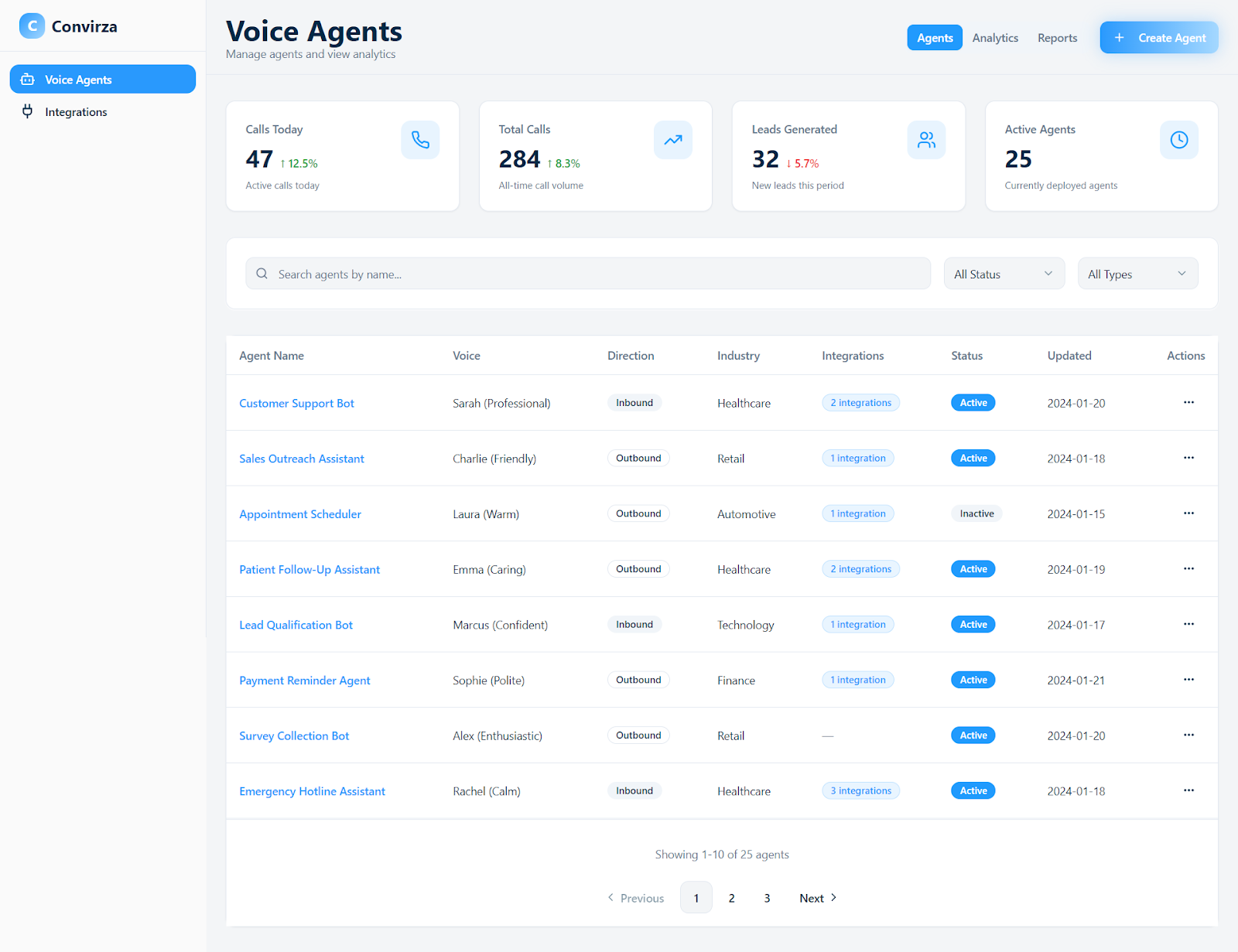**
1. In the left navigation, click **Voice Agents**.
2. Make sure the **Agents** tab at the top of the page is selected.
3. At the top of the page, review the summary cards for **Calls Today**, **Total Calls**, **Leads Generated**, and **Active Agents** to understand overall Voice Agent activity.
4. Use **Search agents by name…** to quickly find a specific agent.
5. Use the **All Status** and **All Types** filters to narrow the list by deployment status or agent type.
6. In the table, review columns such as **Agent Name**, **Voice**, **Direction**, **Industry**, **Integrations**, **Status**, and **Updated** to see how each agent is configured and when it was last changed.
7. Click an agent name to open its details or configuration, or use the **Actions** menu (three dots) for additional options if available.
### **Create a new Voice Agent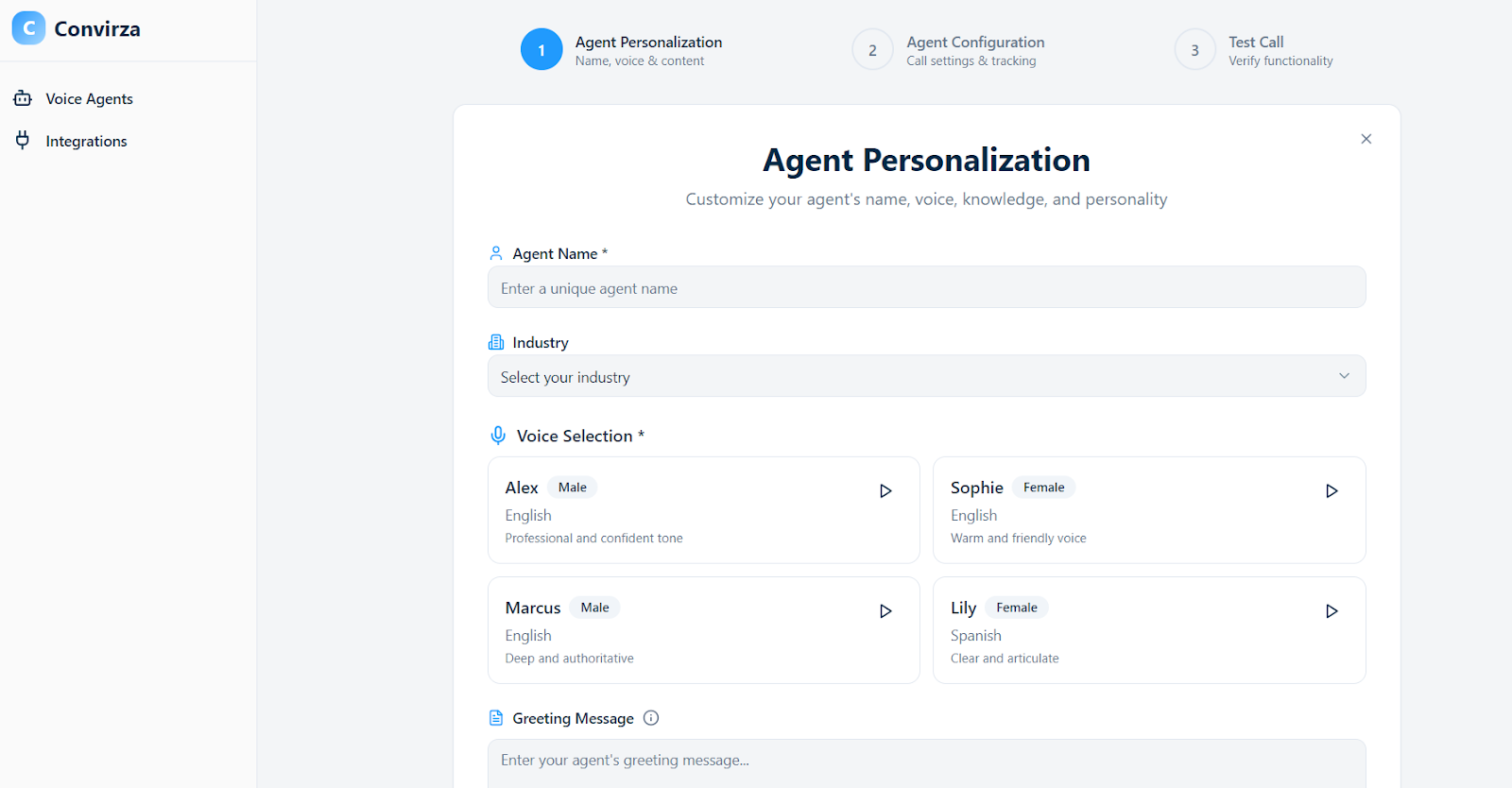**
1. From **Voice Agents \> Agents**, click **Create Agent** in the upper‑right corner.
2. On **Agent Personalisation**, enter an **Agent Name** and select an **Industry** from the dropdown (for example, Healthcare, Retail, or Technology).
3. Under **Voice Selection**, choose a voice card such as Alex, Marcus, Sophie, or Lily; click the play icon on a card if you want to preview how it sounds.
4. In the **Greeting Message**, type the opening message your callers will hear and optionally use **Play Preview** to listen.
5. In **Website URLs**, paste any public URLs that contain information your agent should reference and click **Add**.
6. Click **Next** to go to **Agent Configuration**.
7. On **Agent Configuration**, choose the **Call Direction** (currently **Inbound – Customers call your agent**), optionally attach tracking numbers in **Attach to Tracking numbers**, and toggle **Background Noise Simulation** or **Call Duration Controls** if you want those features enabled.
8. Click **Next** to open **Test Your Agent**, review the **Agent Summary**, then click **Start Test Call & Create Agent** to place a test call and activate the new agent. After this, the agent appears on the **Voice Agents** dashboard with its current **Status** and can use any PMS integrations you have configured.
#### **View Voice Agent analytics and reports**
Once your Voice Agent is live and handling calls, you can use the Analytics and Reports pages to monitor performance and outcomes.
### **Analytics**

1. From the left navigation, click **Voice Agents**, then select the **Analytics** tab at the top of the page.
2. At the top of the Analytics dashboard, review the key metrics:
- **Total Calls** (all‑time call volume).
- **Leads Generated** (new leads in the selected period).
- **Ongoing Calls** (active calls right now).
- **Avg Duration** (average call length).
3. Review the **Calls Over Time** chart to understand call trends by day.
4. Use the **Call Outcomes** chart to see how many calls resulted in key outcomes such as conversions or missed opportunities.
5. Scroll down to **Recent Call Transcripts** to review individual calls, their outcomes (for example, Success, Lead Generated, Transferred), and use **Play Recording** to listen to the call when needed.
These analytics help you confirm that your PMS‑connected Voice Agents are handling the expected volume and producing the right outcomes.
### **Reports**
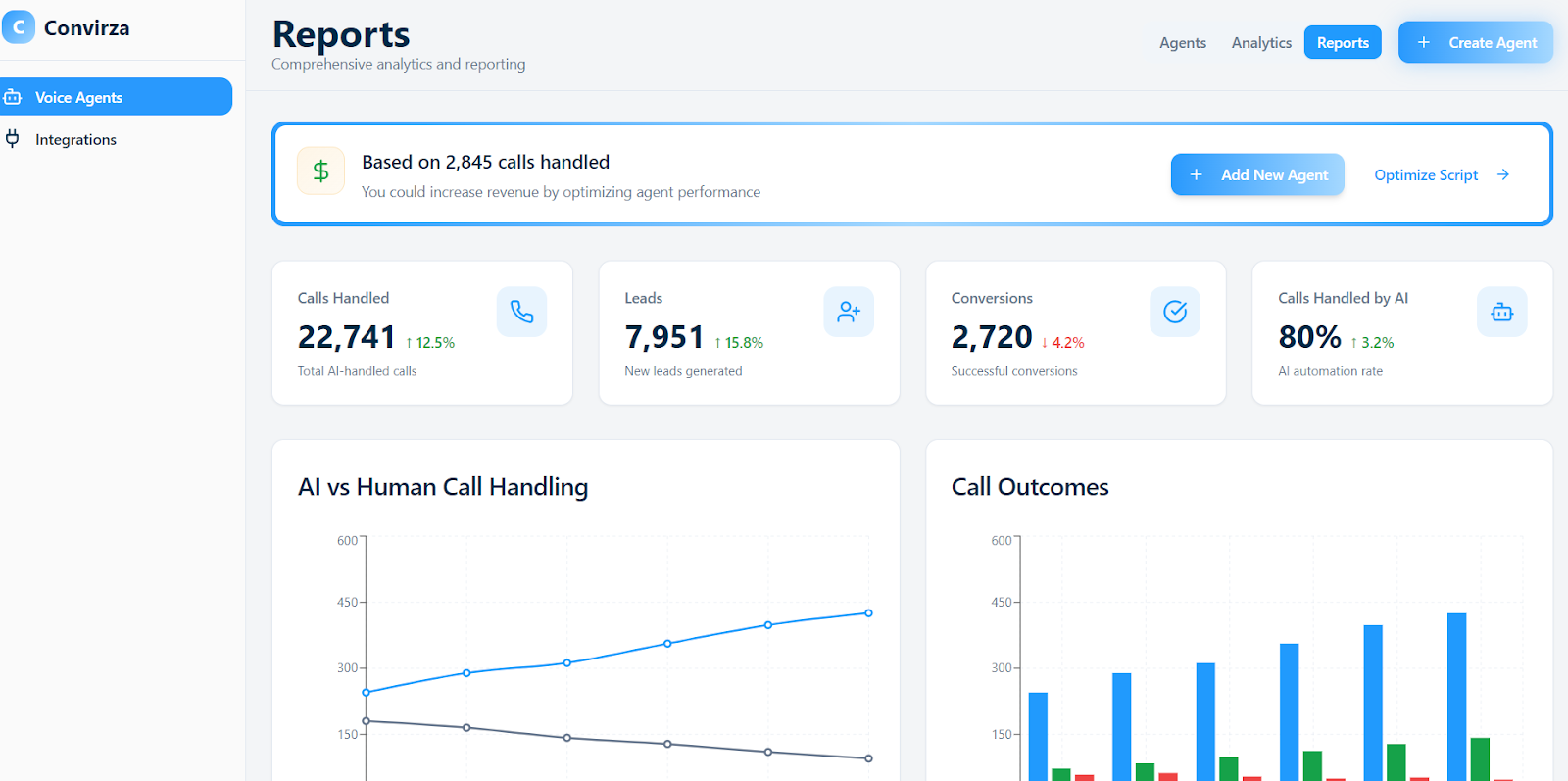
1. In the same **Voice Agents** area, click the **Reports** tab.
2. Use the **All Clients** and date range filters (such as **Last 30 Days**) to choose the data you want to analyse.
3. At the top of the Reports page, review the key cards:
- **Calls Handled** (total AI‑handled calls).
- **Leads** (new leads generated).
- **Conversions** (successful conversions).
- **Calls Handled by AI** (AI automation rate).
4. Review the **AI vs Human Call Handling** chart to compare how many calls are handled by AI versus human agents.
5. Use the **Call Outcomes** chart and **Conversion Funnel** to understand where callers are dropping off or converting.
6. In **Performance Overview**, review performance metrics across practices or business units, including total calls and calls handled by AI.
7. In **Call Insights**, filter by client or outcome to drill into individual calls and see outcomes such as Conversion, Lead, Transferred, or Missed Opportunity.
**For IT admins:** The Analytics and Reports pages use data generated by Voice Agents and, where configured, outcomes written back to the PMS/EHR. Use these pages to validate that call outcomes align with appointment creation and other write‑back actions in your PMS.
---
#### **Technical details for IT admins**
This section summarises the key technical behaviours of the integration, enabling IT staff to manage security, networking, and operations effectively.
**Data flow overview:**
- The connection is initiated from the Convirza Voice Agent platform under **Settings \> Integrations**.
- When you submit practice details, Convirza sends them to the connector partner via a secure API to create an onboarding profile.
- For server‑based systems, a Windows service or background application (the connector) is installed on the PMS server. It reads scheduling and patient data and sends it securely to the connector platform, which then exposes it to Convirza.
- For cloud‑based systems, the connector uses a dedicated integration user account and, where applicable, a Chrome browser extension that captures and syncs scheduling events.
- Convirza communicates with the connector platform via HTTPS APIs to look up patients, read schedules, create or modify appointments, and store call outcomes as configured.
**Authentication and credentials:**
- Server‑based systems use Windows authentication and PMS API or database access configured during the connector installation.
- Cloud‑based systems use a dedicated username and password with appropriate roles in the PMS/EHR.
- For some cloud systems, a Chrome extension is installed and linked to your practice using a token generated on the connector setup page.
**Network and security:**
- The PMS server must allow outbound HTTPS connections to the connector platform; no specific IP ranges are listed in this guide.
- The server must remain powered on and connected to the internet during business hours, so sync jobs can run.
- No additional inbound firewall rules are described; the connector initiates outbound connections.
**System‑specific credential and permission notes (summary):**
- **Athena:** Create a dedicated user with full access to scheduling, departments, providers, and patient charts, and install the Chrome extension with the provided token.
- **Cloud9:** Create a user with required roles, decide which appointment classes should be excluded from online booking, set a default appointment type, and install and authenticate the Chrome extension.
- **Dentrix (on‑premise):** Confirm minimum version G6.2, run the connector installer on the Dentrix server while Dentrix is closed, and select the correct locations in the setup UI.
- **Open Dental (on‑premise):** Confirm minimum version V17; for multi‑clinic environments, install the connector on the main server and select all relevant clinics when choosing locations.
- **Curve Hero:** Use the practice‑specific URL, create a dedicated user with the Office Manager role, and install/authenticate the Chrome extension.
- **Dentrix Ascend:** Use the login URL https://live.dentrixascend.com/login, obtain the Organisation Alias (ORG ID), create a Receptionist‑level user, and install/authenticate the Chrome extension.
- **Denticon:** Create a dedicated user (avoid using your company name in the username), assign the Office Manager security group, allow login at all hours, and install/authenticate the Chrome extension.
- **eClinicalWorks (cloud):** Use the practice‑specific URL, create a Staff user with access to patient lookup, new patient creation, and appointment deletion where needed, ensure “Enforce eCW URL Launcher for Login” is disabled, and install/authenticate the Chrome extension.
- **Modernising Medicine (ModMed):** Configure both a clinical user and a management user with the specified permissions for scheduling, patients, logs, and practice settings; ensure all appointments have a type and define a default appointment type for the integration.
- **NextGen:** No Chrome extension is required; work with Convirza Support to provision an integration user and configure locations.
Voice AI New Integration flow (…
**Monitoring and status:**
- In Convirza, the integration detail page shows connection statuses such as **Connected**, **Pending**, or **Error**, based on responses from the connector API.
- Post‑installation, you can also verify the **Last sync** time and confirm that locations and providers have been imported.
- Use Analytics and Reports to validate that call outcomes align with expected PMS activity.
---
#### **Troubleshooting and common issues**
Below are common problems and the recommended actions.
**Issue: The Setup link does not open or shows an error.**
How to fix: Confirm the link has not expired, try opening it in another browser or network, and contact Convirza Support for a new link if it still fails.
**Issue: The installer reports that a connector is already installed.**
How to fix: Do not continue with a second install. Contact Convirza Support so they can verify the existing connector and link it to your new Voice Agent integration.
**Issue: No locations appear in Convirza after setup.**
How to fix: Make sure that you have completed the location selection step on the external setup page. Wait a few minutes and click the **Refresh locations** option if available. If locations still do not appear, contact Convirza Support to check the sync status.
**Issue: Cloud credentials are rejected on the setup page.**
How to fix: Verify the username and password for the dedicated integration user, confirm the account is not locked or expired, and ensure required roles/permissions are enabled in your PMS/EHR.
**Issue: Data is not syncing after 24-72 hours.**
How to fix (for practice staff): Confirm that calls are still reaching the Voice Agent and that the integration shows as **Connected** in Convirza.
How to fix (for IT admins): Check the connection status in Convirza, confirm Chrome extensions (if required) are installed and authenticated on all workstations, and verify that the integration user account in the PMS/EHR is still active. If issues persist, contact Convirza Support with your practice name and PMS type.
---
#### **Need help?**
If you run into issues during setup or notice unexpected behaviour after going live:
- Use the **Support** or **Help** option inside the Convirza Voice Agent platform.
- Or email the Convirza support team with your practice name, PMS/EHR type, a short description of the issue, and any screenshots or error messages you have.
Involve your IT administrator whenever the issue relates to server access, credentials, browser extensions, or firewall/network configuration. Convirza Support may also request that an IT admin join a troubleshooting session for complex connection problems.
#### **FAQs**
**Q: Which practice management systems does this integration support?**
A: The integration supports both server-based and cloud-based systems. Server-based systems include Dentrix, Open Dental, Eaglesoft, Dentrix Enterprise, Dolphin, OrthoTrac, and PracticeWorks. Cloud-based systems include Athena, Cloud9, Curve Hero, Denticon, Dentrix Ascend, eClinicalWorks (cloud), Modernising Medicine (ModMed), and NextGen.
**Q: Do I need my IT team involved in the setup?**
A: You should involve IT if you use a server-based PMS/EHR or if your organisation restricts software installation and browser extensions. Server-based systems require a Windows installer to be run on the PMS server, and cloud systems may require a dedicated integration user and Chrome extension, which are typically handled by IT.
**Q: Where do I start the integration?**
A: Always start from the Convirza Voice Agent platform. Go to **Settings \> Integrations**, select your PMS/EHR tile, click **View Details**, and then click **Connect** or **Connect practice data**. From there, you will be guided to enter practice details and complete the external connector setup.
**Q: How long does the server-based installer take to run?**
A: For server-based PMS/EHRs, the connector installer typically takes about 10 - 30 minutes to complete on the practice server. During this time, follow any PMS-specific guidance from the installer or your IT team, such as running it while Dentrix is closed, for Dentrix practices.
**Q: Do I need to install anything on every workstation?**
A: For server-based systems, you usually install the connector only on the PMS server or main workstation. For some cloud-based systems, you must install and authenticate a Chrome extension on each workstation that uses the PMS/EHR so the integration can capture and sync scheduling activity.
**Q: What information will I be asked for during setup?**
A: Inside Convirza, you will be asked for basic practice information such as practice name, address, primary contact email, phone number, and sometimes the time zone. On the external connector page, you may also be asked for your PMS/EHR login URL and the username and password of a dedicated integration user.
**Q: Can the Voice Agent create or change appointments in my PMS?**
A: Yes, where enabled, the integration can create new appointments, update existing ones, and log call outcomes or notes back to the PMS/EHR. You control these capabilities in the Voice Agent integration settings by choosing which data flows (such as appointment creation, rescheduling, cancellation, and note write-back) are turned on.
**Q: What if my practice already uses the same connector with another vendor?**
A: If you are already connected to the connector platform for another application, you will typically receive an email asking you to grant access to the new Voice AI app. You simply click the grant link and, if you have multiple locations, choose which locations the Voice Agent can access. No new installer or credentials are required in this scenario.
**Q: What should I do if locations do not appear in Convirza after setup?**
A: First, confirm that you completed the location selection step on the external connector page. Then wait a few minutes and re-open the integration detail page so Convirza can refresh the locations list. If locations still do not appear, contact Convirza Support so they can check the connector sync status for your practice.
**Q: How do I know the integration is healthy after installation?**
A: In the Convirza integration detail page, the status should show as **Connected,** and you should see your locations listed. After you configure your agents, you can place a test call to verify that the Voice Agent can look up patients and book or modify appointments, then confirm that those changes appear correctly in your PMS/EHR.
- [Getting Started](https://kb.convirza.com/getting-started?hsLang=en#main-content)
- [Configuring Your Account](https://kb.convirza.com/getting-started?hsLang=en#configuring-your-account)
- [Application How To](https://kb.convirza.com/application-how-to?hsLang=en#main-content)
- [Tips and Tricks](https://kb.convirza.com/application-how-to?hsLang=en#tips-and-tricks)
- [Integrations](https://kb.convirza.com/integrations?hsLang=en)
- [Convirza API](https://kb.convirza.com/convirza-api?hsLang=en)
- [Features & Settings](https://kb.convirza.com/features-settings?hsLang=en#main-content)
- [Spam Calls & STIR/SHAKEN](https://kb.convirza.com/features-settings?hsLang=en#spam-calls-stir-shaken)
- [DNI](https://kb.convirza.com/features-settings?hsLang=en#dni)
- [White Label](https://kb.convirza.com/features-settings?hsLang=en#white-label)
- [QR Codes](https://kb.convirza.com/features-settings?hsLang=en#qr-codes)
- [Data Append](https://kb.convirza.com/features-settings?hsLang=en#data-append)
- [Multi Language Support](https://kb.convirza.com/features-settings?hsLang=en#multi-language-support)
- [Telecom](https://kb.convirza.com/telecom?hsLang=en#main-content)
- [SMS](https://kb.convirza.com/telecom?hsLang=en#sms)
- [Number Porting](https://kb.convirza.com/telecom?hsLang=en#number-porting)
[](http://convirza.com)
[mailto:email@email.com](mailto:email@email.com)
Copyright © 2026, Convirza