---
title: AI Voice Agent Setup Guide
description: This guide walks you through the complete process of creating, configuring, and deploying an AI Voice Agent. It covers the required steps from initial agent creation to key configuration settings, ensuring the agent is set up correctly to deliver a professional and reliable caller experience. Use this guide as a reference for both first-time setup and consistent implementation across accounts. Convirza's AI Voice Agent
---
[Skip to content](https://kb.convirza.com/ai-voice-agent-setup-guide#main-content)
English
Show submenu for translations
[More support](https://kb.convirza.com/kb-tickets/new?hsLang=en)

Open main navigation
Close main navigation
- English
Show submenu for translations
- [More support](https://kb.convirza.com/kb-tickets/new)
- Contact us
Contact us
How can we help you?
- There are no suggestions because the search field is empty.
1. [Knowledge Base](https://kb.convirza.com/?hsLang=en)
2. [Getting Started](https://kb.convirza.com/getting-started?hsLang=en)
# AI Voice Agent Setup Guide
## This guide walks you through the complete process of creating, configuring, and deploying an AI Voice Agent. It covers the required steps from initial agent creation to key configuration settings, ensuring the agent is set up correctly to deliver a professional and reliable caller experience. Use this guide as a reference for both first-time setup and consistent implementation across accounts.
#### **Step 1: Create a New Voice Agent**
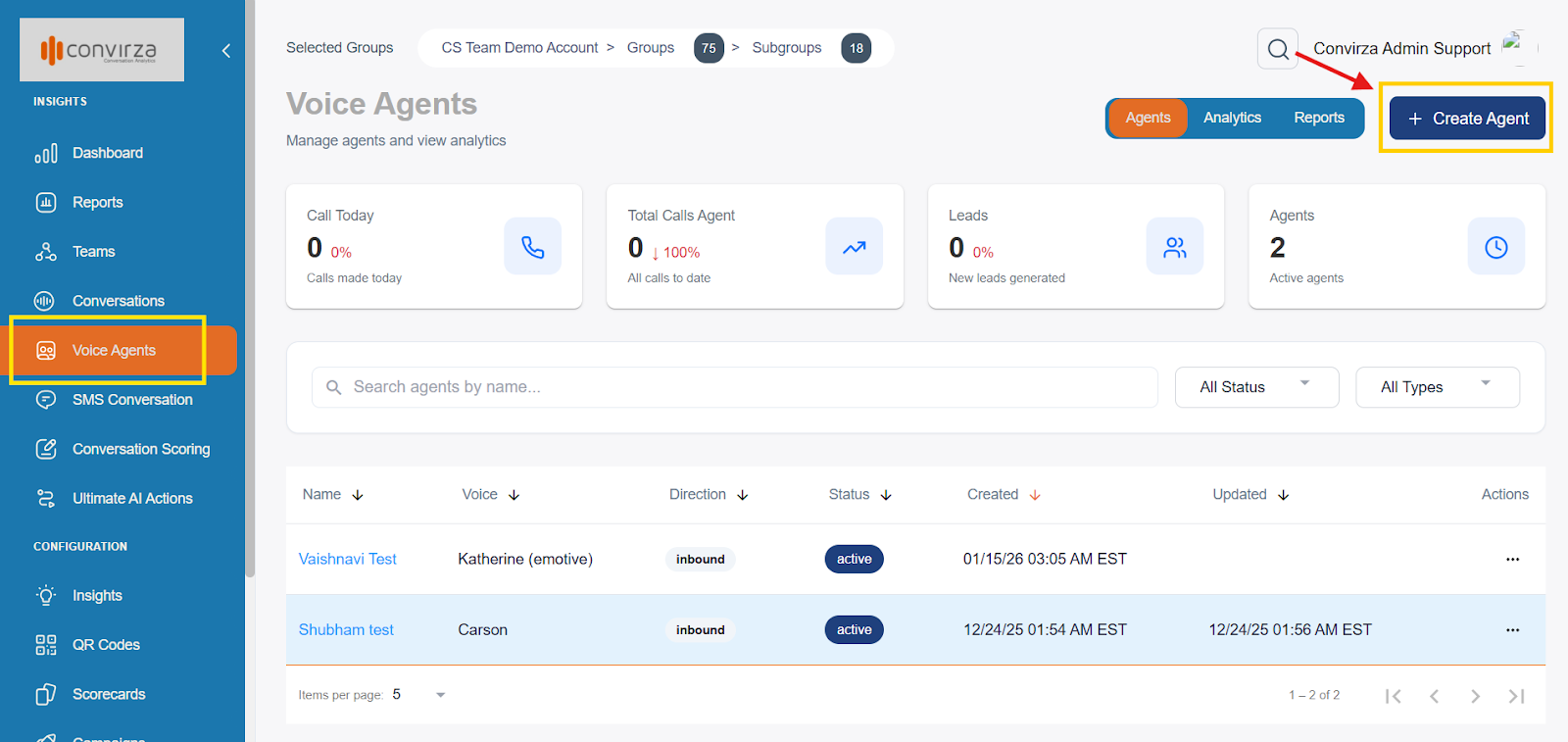
1. Navigate to **Voice Agents > Agents** in the dashboard.
2. Click **Create Agent** located in the upper-right corner of the screen.
#### **Step 2: Agent Personalisation**
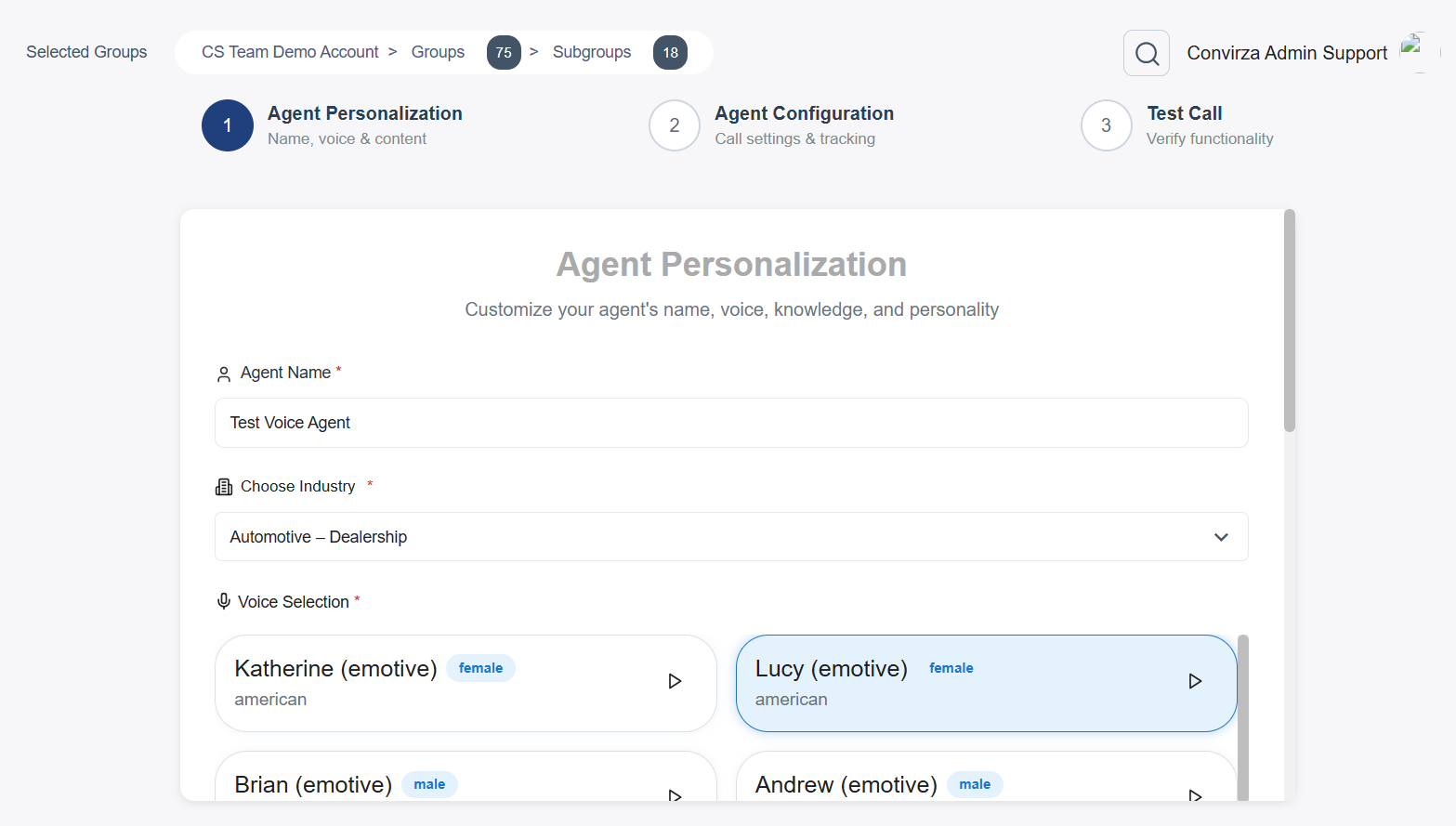
On the **Agent Personalisation** screen, configure the basic identity of your AI Voice Agent:
- **Agent Name**: Enter a clear and descriptive name for your agent.
- **Industry**: Select the appropriate industry from the dropdown menu (e.g., Healthcare, Retail, Technology).
### **Voice Selection**
- Choose a voice from the available voice cards such as **Alex**, **Marcus**, **Sophie**, or **Lily**.
- Click the **Play** icon on any voice card to preview how it sounds before selecting.
### **Greeting Message**
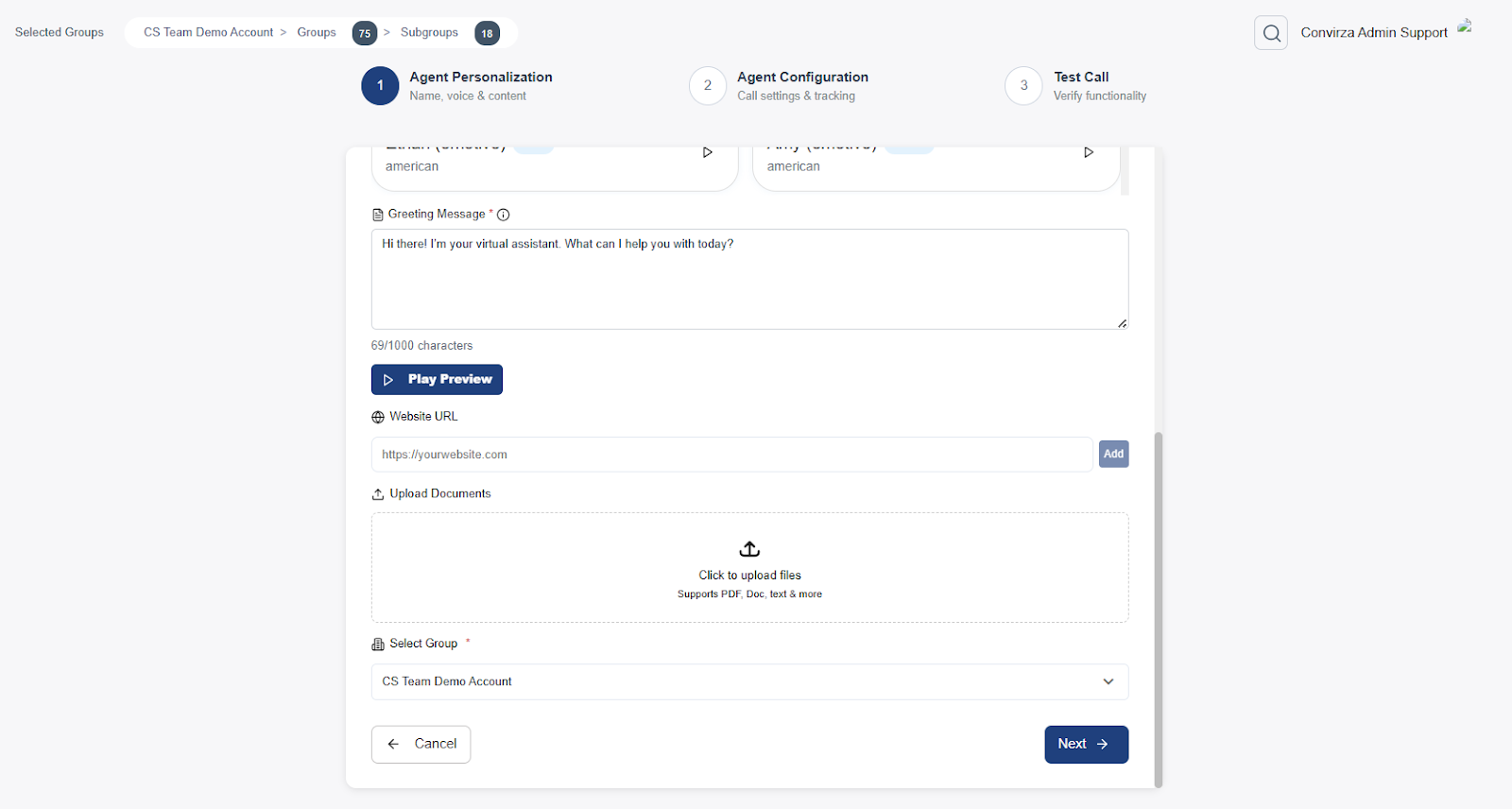
- Enter the **Greeting Message** that callers will hear when the call begins.
- Optionally, use **Play Preview** to listen to the greeting and confirm it sounds correct.
### **Website URLs**
- Paste any **public website URLs** that contain information the agent should reference during calls.
- Click **Add** after each URL to include it in the agent’s knowledge base.
Once completed, click **Next** to proceed to configuration.
#### **Step 3: Agent Configuration**
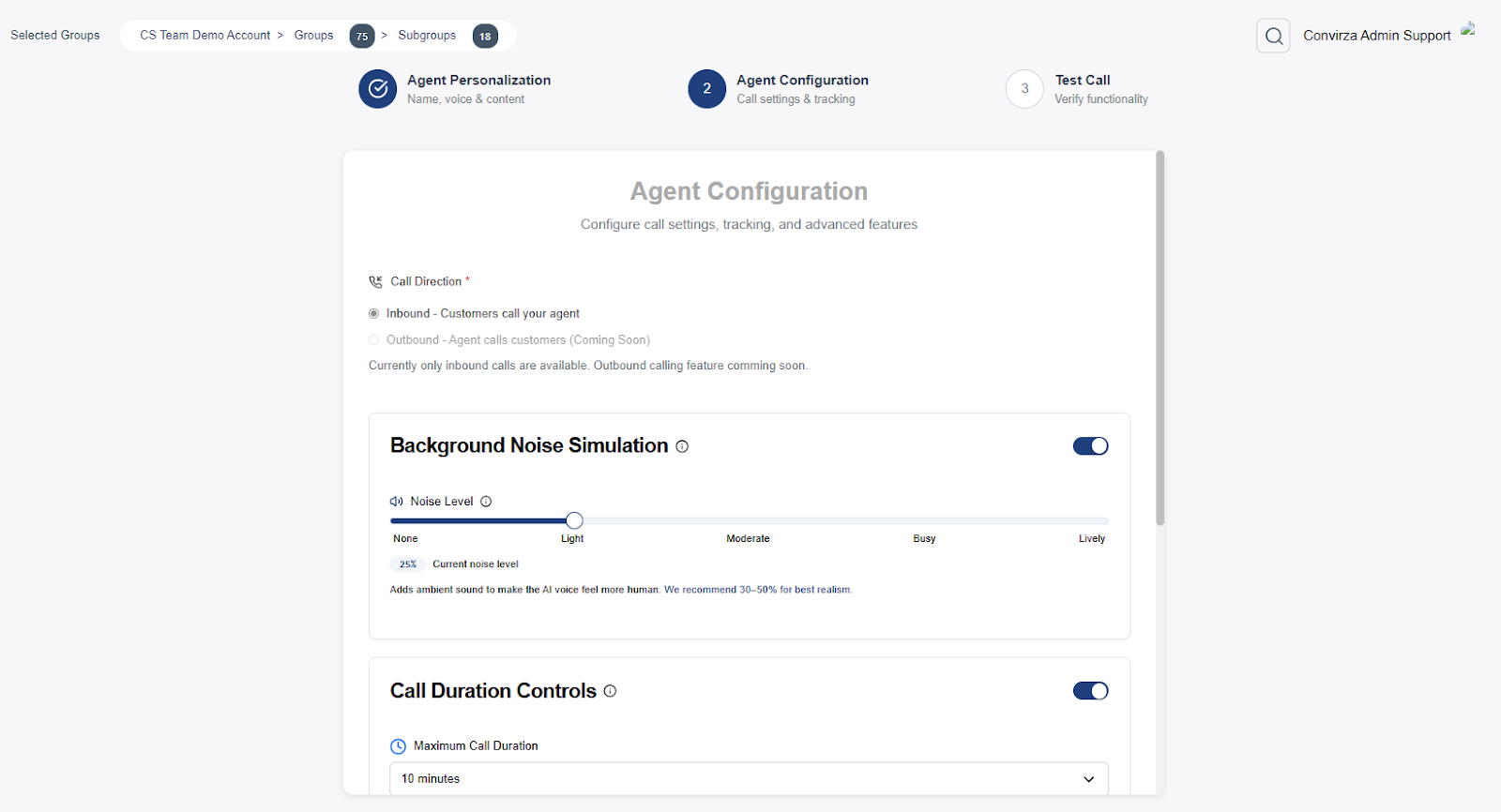
On the **Agent Configuration** screen, define how the agent will operate:
- **Call Direction**: Select **Inbound** (customers call your agent).
- **Attach to Tracking Numbers** (Optional): Attach tracking numbers if call tracking is required.
- **Background Noise Simulation** (Optional): Enable this to simulate real-world calling environments.
- **Call Duration Controls** (Optional): Enable to manage or limit call lengths.
After reviewing the settings, click **Next**.
#### **Step 4: Test and Activate the Agent**
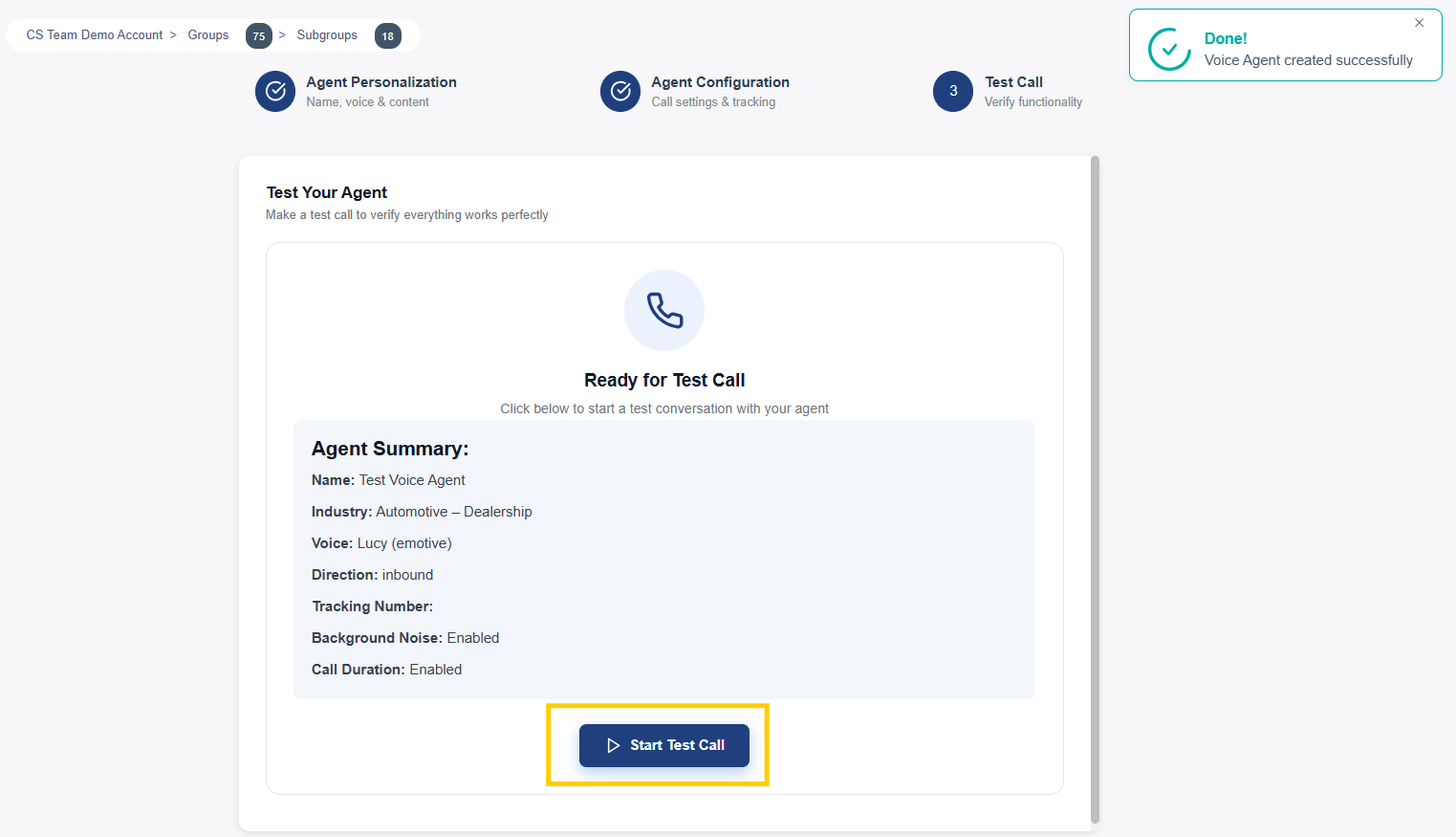
1. The **Test Your Agent** screen will open.
2. Review the **Agent Summary** to ensure all details are correct.
3. Click **Start Test Call & Create Agent** to:
- Place a test call
- Activate the AI Voice Agent
#### **Step 5: Agent Availability**
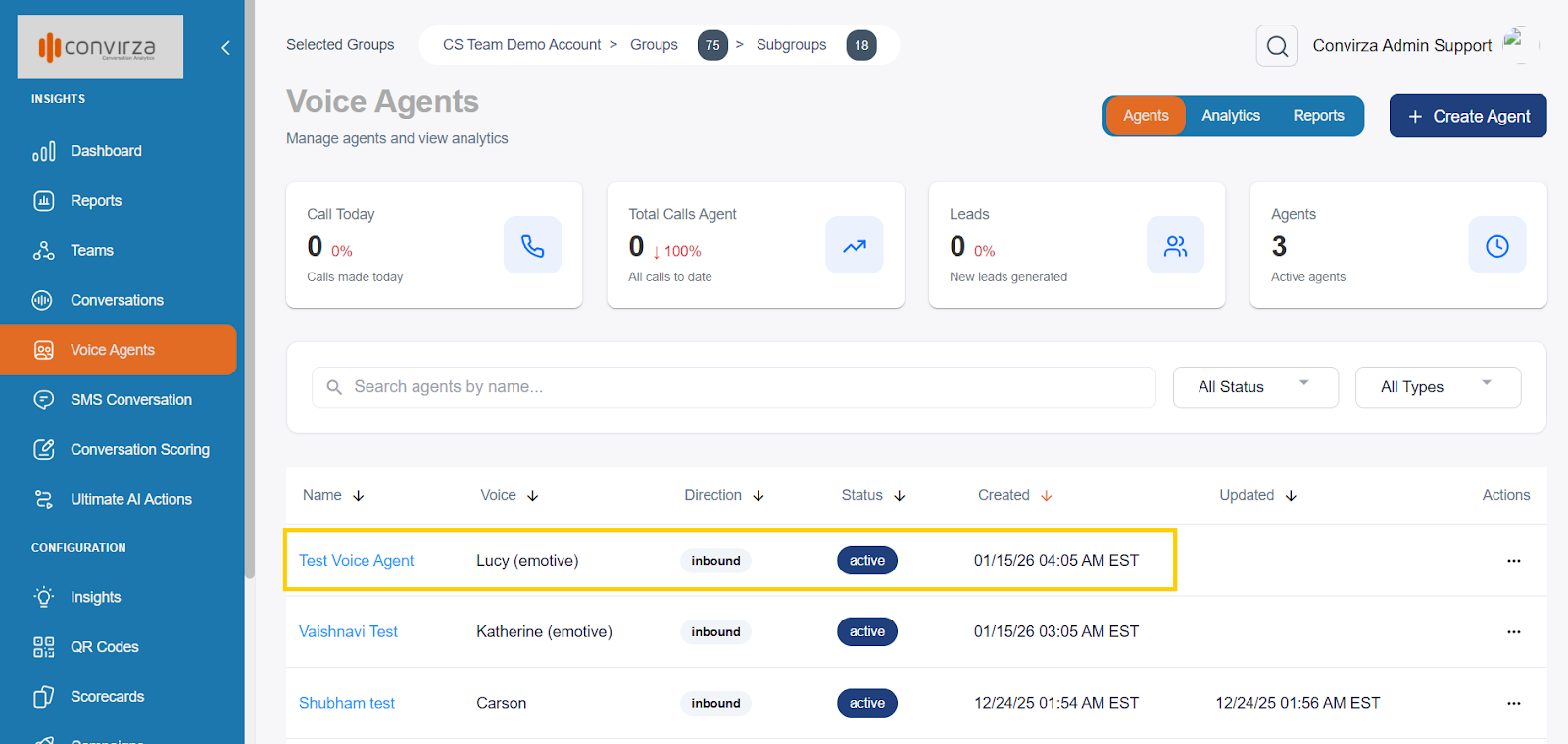
- Once created, the agent will appear on the **Voice Agents dashboard**.
- You can view its **current Status** and manage it as needed.
- The agent can immediately use any **PMS integrations** that have already been configured.
#### **Conclusion**
Your AI Voice Agent is now fully set up and ready to handle inbound calls. You can update configurations, voices, greetings, or integrations at any time from the Voice Agents dashboard.
- [Getting Started](https://kb.convirza.com/getting-started?hsLang=en#main-content)
- [Configuring Your Account](https://kb.convirza.com/getting-started?hsLang=en#configuring-your-account)
- [Application How To](https://kb.convirza.com/application-how-to?hsLang=en#main-content)
- [Tips and Tricks](https://kb.convirza.com/application-how-to?hsLang=en#tips-and-tricks)
- [Integrations](https://kb.convirza.com/integrations?hsLang=en)
- [Convirza API](https://kb.convirza.com/convirza-api?hsLang=en)
- [Features & Settings](https://kb.convirza.com/features-settings?hsLang=en#main-content)
- [Spam Calls & STIR/SHAKEN](https://kb.convirza.com/features-settings?hsLang=en#spam-calls-stir-shaken)
- [DNI](https://kb.convirza.com/features-settings?hsLang=en#dni)
- [White Label](https://kb.convirza.com/features-settings?hsLang=en#white-label)
- [QR Codes](https://kb.convirza.com/features-settings?hsLang=en#qr-codes)
- [Data Append](https://kb.convirza.com/features-settings?hsLang=en#data-append)
- [Multi Language Support](https://kb.convirza.com/features-settings?hsLang=en#multi-language-support)
- [Telecom](https://kb.convirza.com/telecom?hsLang=en#main-content)
- [SMS](https://kb.convirza.com/telecom?hsLang=en#sms)
- [Number Porting](https://kb.convirza.com/telecom?hsLang=en#number-porting)
[](http://convirza.com)
[mailto:email@email.com](mailto:email@email.com)
Copyright © 2026, Convirza